Last updated
Countertop DXF cleanup: open outlines, text junk, and what a clean import needs
A DXF nests only if every piece is a single closed outline, on a clean layer, in the right units - anything less and it either won't import or won't nest correctly. The most common culprit is an open outline: a countertop shape drawn as three sides and an implied fourth wall, copied out of an architectural drawing that never expected to be cut. Add in stray dimension text, title blocks, and duplicate overlapping lines left on the same layer, and a shop drawing that looks fine on screen can still fail import. The fix isn't a smarter nesting algorithm - it's a five-minute cleanup pass before the file ever goes in, and a tool that tells you exactly which piece and which problem when it can't be used.
Why "it looks fine" isn't the same as "it's closed"
Open outlines are the single biggest reason a countertop DXF fails to nest. A unit type traced from the drawing you get from the architect often has three finished edges and one wall-return edge that was never drawn as a line - it was implied by the wall itself. On screen, snapped to a grid, the gap can be invisible. To a nesting engine, it's not a shape at all: it's a set of disconnected segments with no enclosed area, so there's nothing to place on a slab.
The same job usually carries a second problem: layers. Dimension strings, room labels, title blocks, and revision clouds get exported onto the same DXF as the cut geometry. Duplicate lines - traced twice, once from an old revision and once from the current one - stack on top of each other and can throw off area and edge-offset calculations even when the outline itself is closed. Our DXF-to-slab-count guide covers what happens once a file is clean; this one is about getting it there.
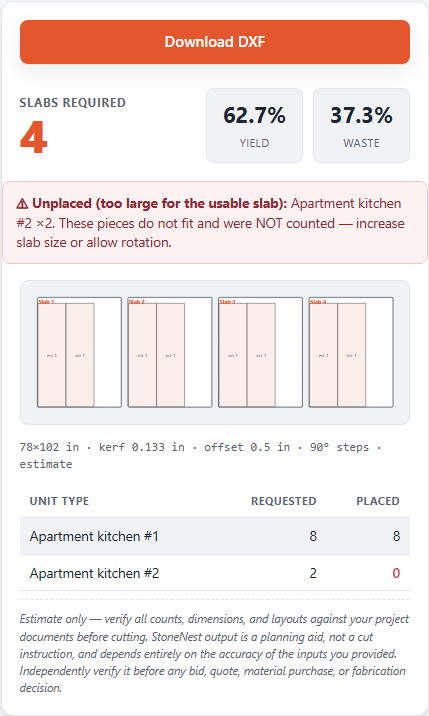
StoneNest naming the exact piece and the exact reason it won't nest.
The pre-import checklist
Before a DXF goes into any nesting run, we check four things, in this order:
1. Closed outlines only. Every countertop unit type should be one continuous, closed polyline or a set of lines/arcs that fully enclose an area - no gaps, no dangling endpoints.
2. Cut geometry on its own layer. Dimensions, text, title blocks, and hatch patterns should be off or deleted, not just a different color on the same layer.
3. No duplicate or overlapping lines. Retraced revisions and double-clicked exports both leave stacked geometry that reads as extra edges.
4. Units and scale match. A file exported in millimeters that gets treated as inches will nest a piece at roughly 1/25th its real size - or the reverse - and every downstream number is wrong.
A DXF that passes all four typically comes out of CAD software as a clean export in the first place; the cleanup pass is really about catching files that were traced by hand or converted from an older format for a multifamily job with dozens of repeated unit types. For the estimating side of that repetition, see our multifamily countertop estimating guide.
Why a named reason beats a silent failure
The worst version of a bad import isn't a rejected file - it's one that gets accepted and nests wrong without telling you. StoneNest's validator gate checks every piece against overlap, off-slab placement, and kerf violations before export, and if a piece can't be used, it reports which piece and why, instead of quietly dropping it or exporting a layout that won't actually cut clean. That's the same gate that stands behind the yield numbers in our slab yield guide - a real 108-unit job across 3 unit types nested to 132 slabs at 81.6% yield, with 0.133″ kerf and 0.50″ edge offset held throughout, because every piece that reached the AlphaCAM-ready DXF export had already passed the closed-outline and geometry checks first.
Run your own file through it: try StoneNest free for 7 days, no card required. If you'd rather see the numbers before you upload anything, our pricing page covers the Early Adopter rate and the free Estimator Mode fallback.
FAQ
Why won't my DXF import for nesting?
The most common reason is an open outline - a unit type shape that isn't a fully closed polyline or line/arc loop. Stray text, dimension, or title-block layers left in the file, and unit/scale mismatches, are the next most common causes.
What is an open outline and why does it break nesting?
An open outline is a shape with a gap or dangling endpoint instead of a continuous closed boundary. It often comes from architectural drawings where one edge is implied by a wall rather than drawn as a line. Nesting software needs an enclosed area to place, so an open outline can't be used until it's closed.
Do I need to delete dimension and text layers before importing?
Yes, or at minimum turn them off so only cut geometry remains on the layer being imported. Leftover text, title blocks, and duplicate traced lines can distort area and edge-offset calculations even when the piece outline itself is closed.
What happens if a piece in my DXF can't be nested?
StoneNest's validator gate flags the specific piece and the specific reason - overlap, off-slab placement, or a kerf violation - rather than failing silently or exporting a layout that won't actually cut clean.
Related guides
From DXF to Slab Count
The mechanical path from the DXF your ERP or CAD already exports to a validated slab count and cut-ready file.
Cut-safe nestingHow Layouts Are Validated
The second-opinion gate that blocks bad exports.
MultifamilyQuote a Multifamily Job Fast
A step-by-step run through turning a multifamily job into a defensible slab count in one sitting.
See what your own job nests to
Try the free web estimator with your own unit counts, or start the 7-day free trial for full DXF import, export, and the validator gate.